01
Choose a video
Select a saved MP4 or open the sample.
Find moments where a screen recording changes, capture one still, or extract frames at set intervals. Save full-size PNGs or a ZIP right in your browser.
Choose a video to get started.
VisualFormat Video Frame Extractor saves still images from a local video as full-resolution PNGs. Use Suggested frames to pick out changed screens, Capture current frame for one still, or Every interval for regularly spaced images. The recording stays on your device.
Video limits: up to 100 MB, 10 minutes, and 4,096 pixels per side. MP4 with H.264 works in the widest range of browsers.
Extraction limits: suggested mode scans up to 60 seconds at a time and returns up to 24 suggestions. The gallery holds 60 images. Exports are limited to 48 million total pixels and 64 MB of PNG data. On a phone, split large exports into smaller batches.
Open your screen recording, choose Suggested frames, and select Extract frames. Keep screenshots that show what a reader should click or see. If a menu or confirmation flashed by, pause at that moment and use Capture current frame to add it. Download the selected PNGs as a ZIP and place them beside the matching instructions in your guide.
Example: Choose Every interval and set one second for the five-second report review recording. The ZIP has five 640 × 360 PNGs. Pick the screens at one, two, and four seconds to show the review, approval, and confirmation.
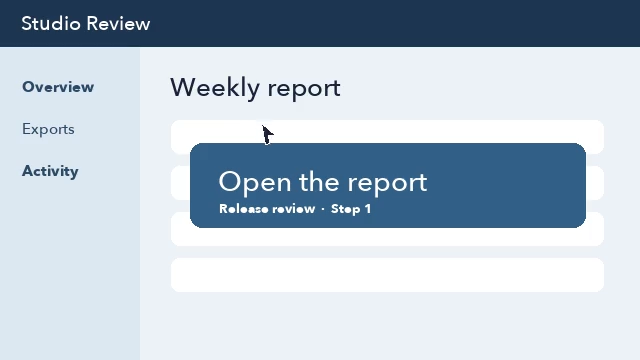
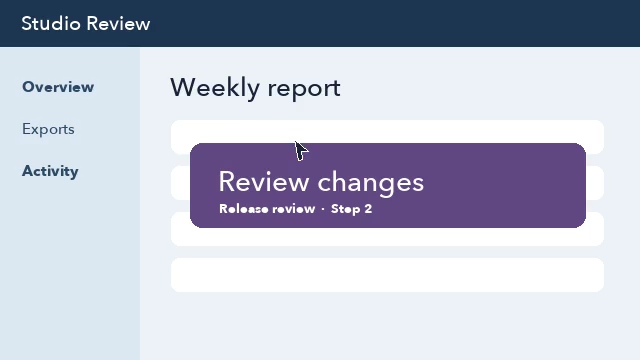
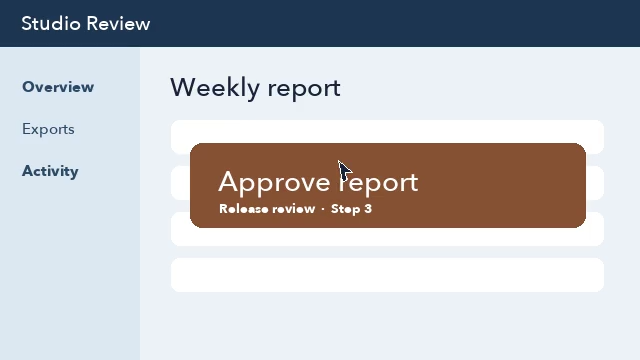
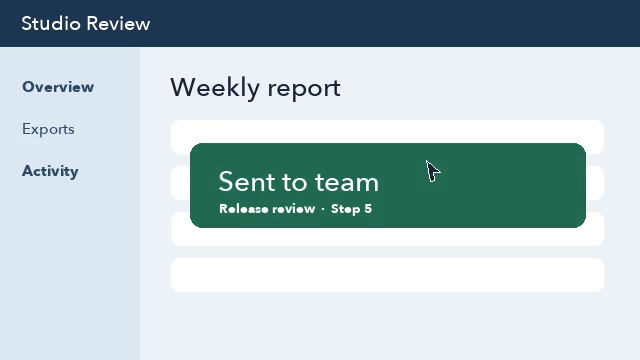
Choose the MP4, pause the video at the moment you want, and select Capture current frame. Use the download icon on that thumbnail. The PNG uses the video frame’s original dimensions, so a 1920 × 1080 video yields a 1920 × 1080 still without the player controls.
Choose Every interval, set the interval to 1 second, and select Extract frames. A range from 0 to 10 seconds gives 10 frames at 0, 1, and each second through 9. Use Download all (ZIP) to save the PNGs together. This mode follows the clock, so it can return similar images and miss a change that happens between samples.
Select a saved MP4 or open the sample.
Find suggested frames, take a still every few seconds, or pause and capture a specific frame.
Download a PNG from its thumbnail, or select several frames to download them as a ZIP.
Formats, suggested frames, phones, and private processing.
VisualFormat checks the video every 0.25 seconds and compares areas of the picture. It keeps visually distinct frames and skips similar ones. Changes that fall between samples can be missed. Pause and use Capture current frame to add a moment the tool missed.
Use a copy of the recording saved on your device. Open that video file in VisualFormat and choose Suggested frames. The tool takes local video files as input.
Open VisualFormat in your phone browser and choose a video saved on the device. Pause the preview, tap Capture current frame, then tap the download icon below the thumbnail. If your browser cannot play the file, try an H.264 MP4.
The PNG keeps the decoded frame at its original dimensions. It preserves the blur, motion, or compression already in the video. For readable text, pick a moment when the screen is still and check the downloaded PNG at full size.
Review the suggested PNGs in timestamp order, then write an instruction next to each screenshot you keep.