GIF Speed Changer
Speed up or slow down a GIF
Change how fast your GIF plays. Compare the original and the new speed before you download.
Free, local processing
Start with your GIF
Speed up or slow down a GIF
Choose a file or drop it here.
GIF · Up to 20 MB and 500 framesTry it at 2×
Your GIF stays on your device.
What does a GIF speed changer do?
A GIF speed changer adjusts how long each frame stays on screen. Shorter delays speed up the animation and longer delays slow it down. VisualFormat adjusts those delays while keeping the original frame images, transparency, frame order, and loop setting.
- Input
- Animated GIF with at least two frames
- Output
- Animated GIF at the new speed
- Controls
- 0.25× to 4× playback speed
- Processing
- Free, on your device
Limits: up to 20 MB, 500 frames, 4,096 pixels per input side and 40 million total full-frame pixels. A single-frame GIF has no sequence to retime.
Shorten a progress loop for a product demo
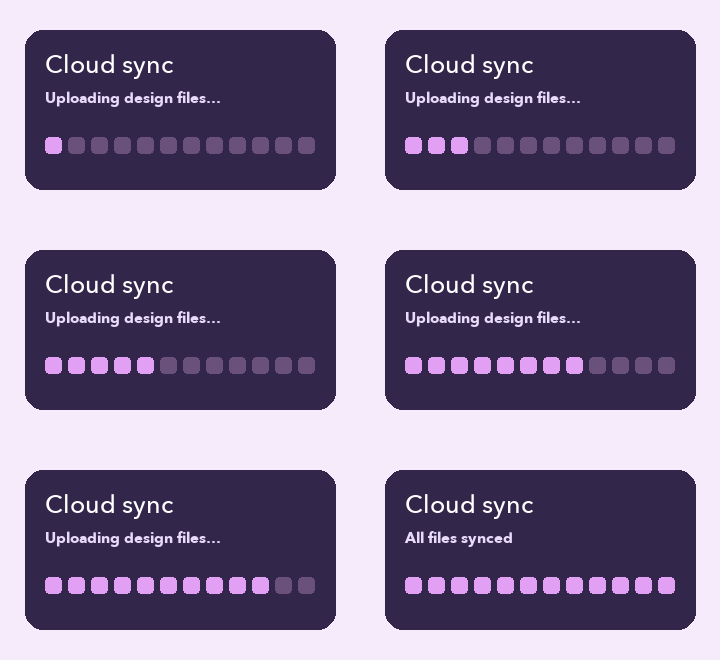
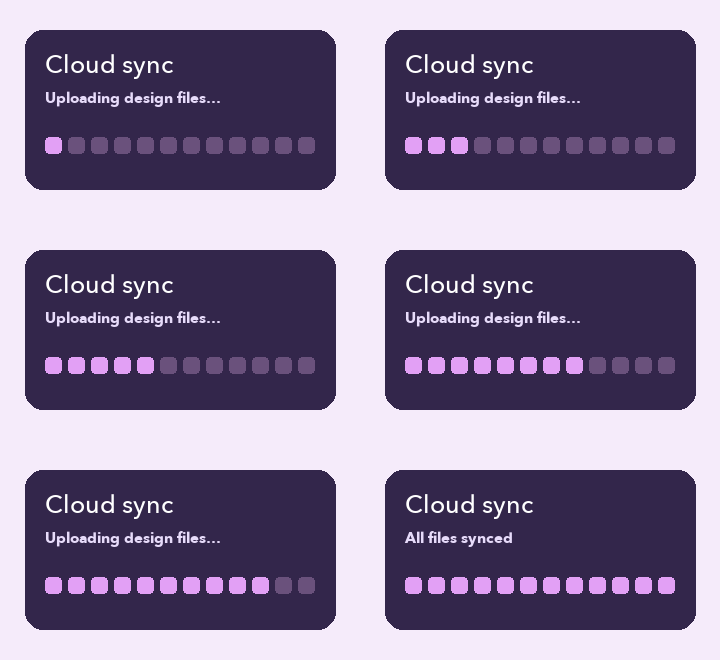
Example: Apply 2× to the cloud-sync animation. The same twelve progress frames now run in 1.2 seconds instead of 2.4. Play the comparison to see when each version reaches “All files synced.”
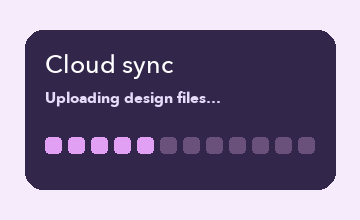
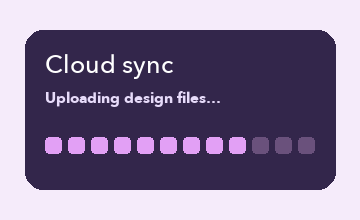
Play the speed comparison
How to change GIF speed online
- 01
Choose your GIF
Open an animated GIF from your device or use the example.
- 02
Set the playback speed
Choose 0.5× for half speed, 2× for double speed, or enter a custom multiplier. Select Apply speed to see the result.
- 03
Compare and download
Compare both previews and their durations. Select Download GIF to save the updated animation.
Choose a speed for the action you want people to notice
For a looping reaction, try a faster setting and check whether the punch line still lands. To teach a hand movement or a change in a drawing, slow the sequence so viewers can follow the transition. Start with 1.5× or 0.75× if the original already feels close. Compare the previews through two full loops so you can judge both the movement and the pause when the animation restarts.
A single multiplier also changes the time spent on a title card or an end pose. Check that readers can finish the text before the next frame arrives.
Check timing in the app where the GIF will play
Short delays may be interpreted differently by browsers, messaging apps, and other GIF viewers. Test the downloaded file in the destination before sharing it. A speed change keeps the existing frame data, so it generally changes the file size very little. If the app rejects the attachment for size, adjust the GIF in a compressor and check the bytes after export.
If you are aiming for a three-second loop, compare the durations shown by the tool after applying a multiplier. GIF delays round to fixed increments, and the shortest delays have a lower bound. The displayed result gives you a better starting point than a hand calculation.
GIF Speed Changer FAQs
How do I speed up a GIF?
Choose a GIF, select 2×, and apply the speed. The tool shortens each frame’s display time, so a GIF with 80 ms delays plays each frame for 40 ms.
How do I slow down a GIF?
Select 0.5× to play at half speed, or enter a custom value below 1×. Each frame remains visible longer.
Does changing GIF speed reduce image quality?
The tool changes frame timing without re-encoding the frame images. It keeps the original colors, transparency, frame order, and loop setting.
Why is the new GIF duration different from my estimate?
GIF delays are stored in 10 ms increments. The tool rounds scaled delays to those increments and limits very short output delays to 20 ms when changing speed. Browsers can also interpret very short original delays differently.
Can I change the speed of a single-frame GIF?
Speed applies to animation. Choose a GIF with at least two frames to use this tool.